Connect to HL7 TCP servers
This guide explains how to connect to HL7 TCP servers using the WSO2 Open Healthcare. The WSO2 Open Healthcare provides built-in capabilities to connect to HL7 TCP servers and send HL7 messages over the TCP. The TCP transport is commonly used to exchange HL7 messages between healthcare systems, such as hospital information systems (HIS), laboratory information systems (LIS), and electronic health record (EHR) systems.
The following example demonstrates how to connect to an HL7 TCP server using Ballerina HL7 client.
Step 1: Create the integration
Open WSO2 Integrator.
Select Create in the Create New Integration card.
Set Integration Name to
HL7TcpClient.Set Project Name to
hl7-tcp-client.Select Create Integration.
Select Add Artifact and select Automation.
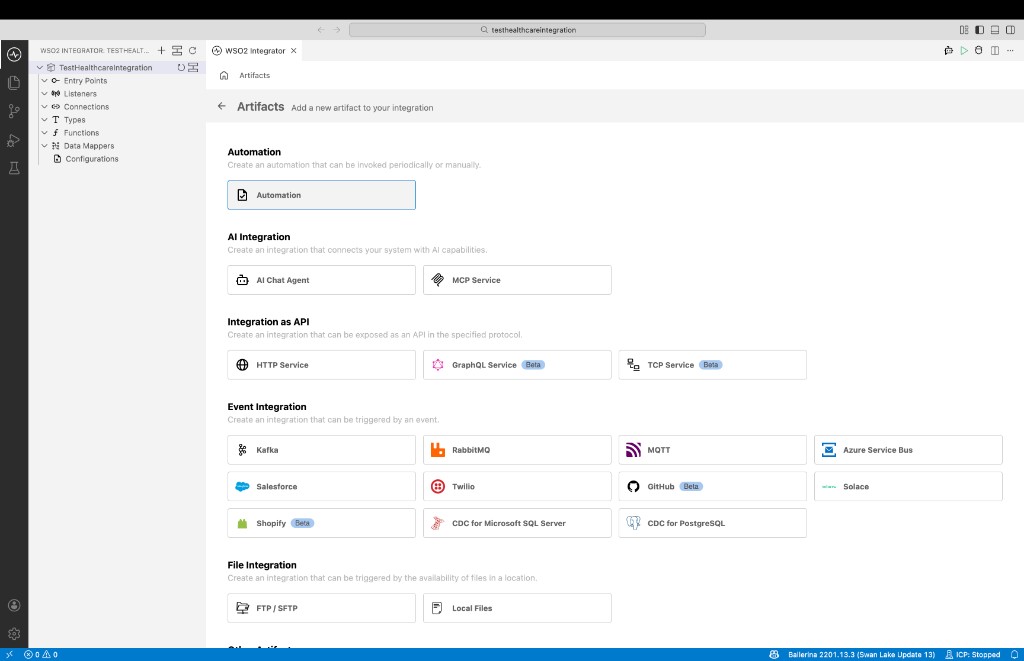
Step 2: Implement the flow to connect to the HL7 TCP server
Import the required modules to the Ballerina program and implement the logic to connect to the HL7 TCP server. In this sample, we are using the HL7v2.3 version. Therefore, we need to import the
ballerinax/health.hl7v23package. If you are using a different version of HL7, you can import the relevant package. Then QRY_A19 message is constructed and sent to the target HL7 server using Ballerina HL7 client.import ballerinax/health.hl7v2;
import ballerinax/health.hl7v23;
import ballerina/io;
public function main() returns error? {
hl7v23:QRY_A19 qry_a19 = {
msh: {
msh3: {hd1: "ADT1"},
msh4: {hd1: "MCM"},
msh5: {hd1: "LABADT"},
msh6: {hd1: "MCM"},
msh8: "SECURITY",
msh9: {cm_msg1: "QRY"},
msh10: "MSG00001",
msh11: {pt1: "P"},
msh12: "2.3"
},
qrd: {
qrd1: {ts1: "20220828104856+0000"},
qrd2: "R",
qrd3: "I",
qrd4: "QueryID01",
qrd7: {cq1: "5"},
qrd8: [{xcn1: "1", xcn2: "ADAM", xcn3: "EVERMAN"}],
qrd9: [{ce1: "VXI"}],
qrd10: [{ce1: "SIIS"}]
}
};
hl7v2:HL7Client hl7client = check new("localhost", 59519);
hl7v2:Message msg = check hl7client.sendMessage(qry_a19);
io:println(string `Response : ${msg.toJsonString()}`);
}Select Run and test.
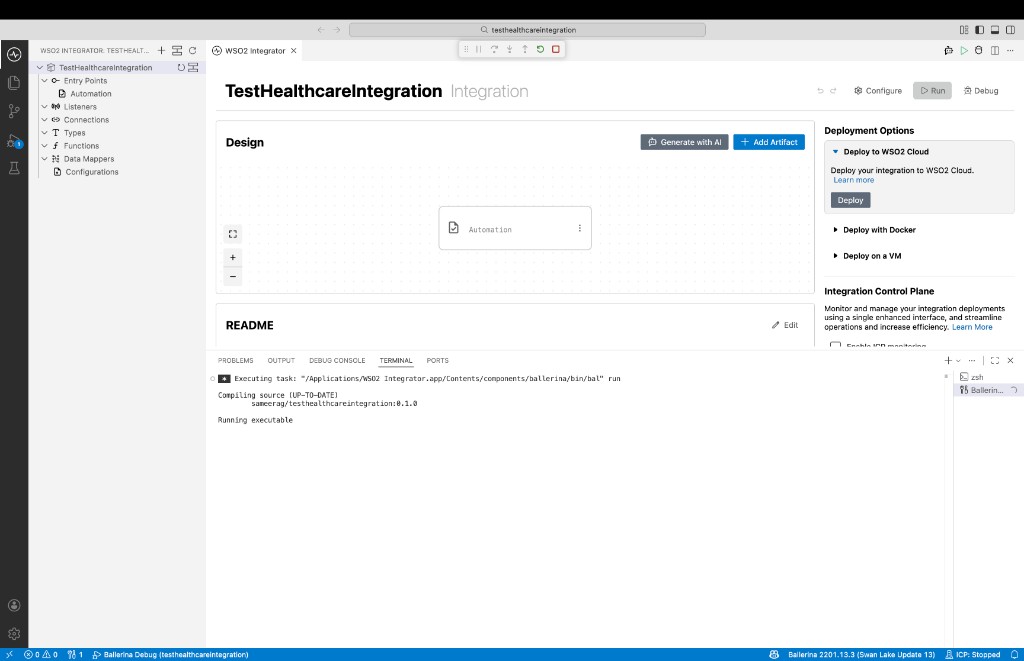
The Ballerina program connects to the HL7 TCP server and sends the QRY_A19 message. Check the terminal output to confirm the response message received from the server.